4 Beginner-Friendly Excel Projects You Can Complete in Under an Hour
If you've ever opened Excel only to feel overwhelmed by blank grids and endless columns, you're not alone. The key to mastering Excel is to start with small, practical projects that teach core skills while creating something useful. Below are four beginner-friendly projects that take less than an hour each and help you build confidence. Each project includes step-by-step instructions and tips to get you started.
1. Personal Budget Tracker
Track your monthly income and expenses with a simple spreadsheet. This project introduces you to basic formulas, cell formatting, and data entry.
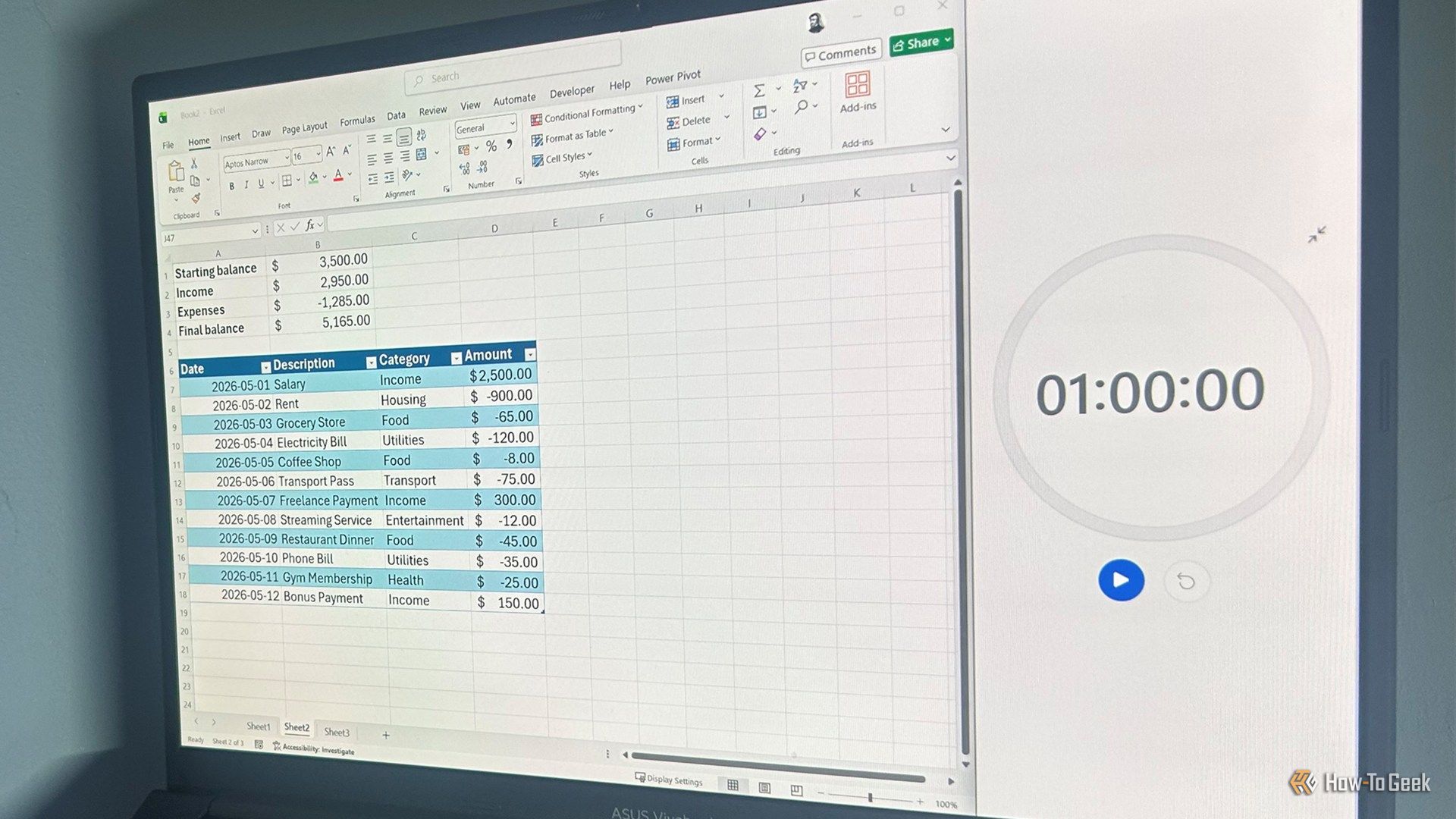
Steps
- Create columns: Category, Budgeted Amount, Actual Amount, Difference.
- Enter your income and expense categories (e.g., Rent, Groceries, Entertainment).
- Use the formula
=B2-C2in the Difference column (where B2 is Budgeted, C2 is Actual). - Apply conditional formatting to highlight overspending (e.g., red fill for negative values).
Tip: Use the SUM function at the bottom to calculate totals.
2. Weekly Schedule Planner
Organize your week with a clear, visual schedule. This project covers time formatting, merging cells, and basic data validation.
Steps
- Set up columns for Time (e.g., 9:00 AM, 10:00 AM) and rows for each day (Monday–Sunday).
- Merge cells across columns to represent time blocks (e.g., merge two cells for a 2-hour meeting).
- Use Data Validation to create drop-down lists for activity types (Work, Exercise, Personal).
- Apply cell colors using the Fill Color tool for quick visual scanning.
Tip: Add a =TODAY() function to highlight the current day automatically.
3. Simple Inventory List
Manage items in your home or small office. This project teaches sorting, filtering, and basic formulas like IF and VLOOKUP.
Steps
- Create columns: Item, Quantity, Minimum Stock, Status.
- Use the formula
=IF(B2<=C2,"Reorder","OK")to flag low stock. - Sort items by quantity (ascending) using the Sort & Filter option.
- For a more advanced step, use VLOOKUP to pull prices from a separate sheet.
Tip: Freeze the header row so you can scroll without losing column labels.
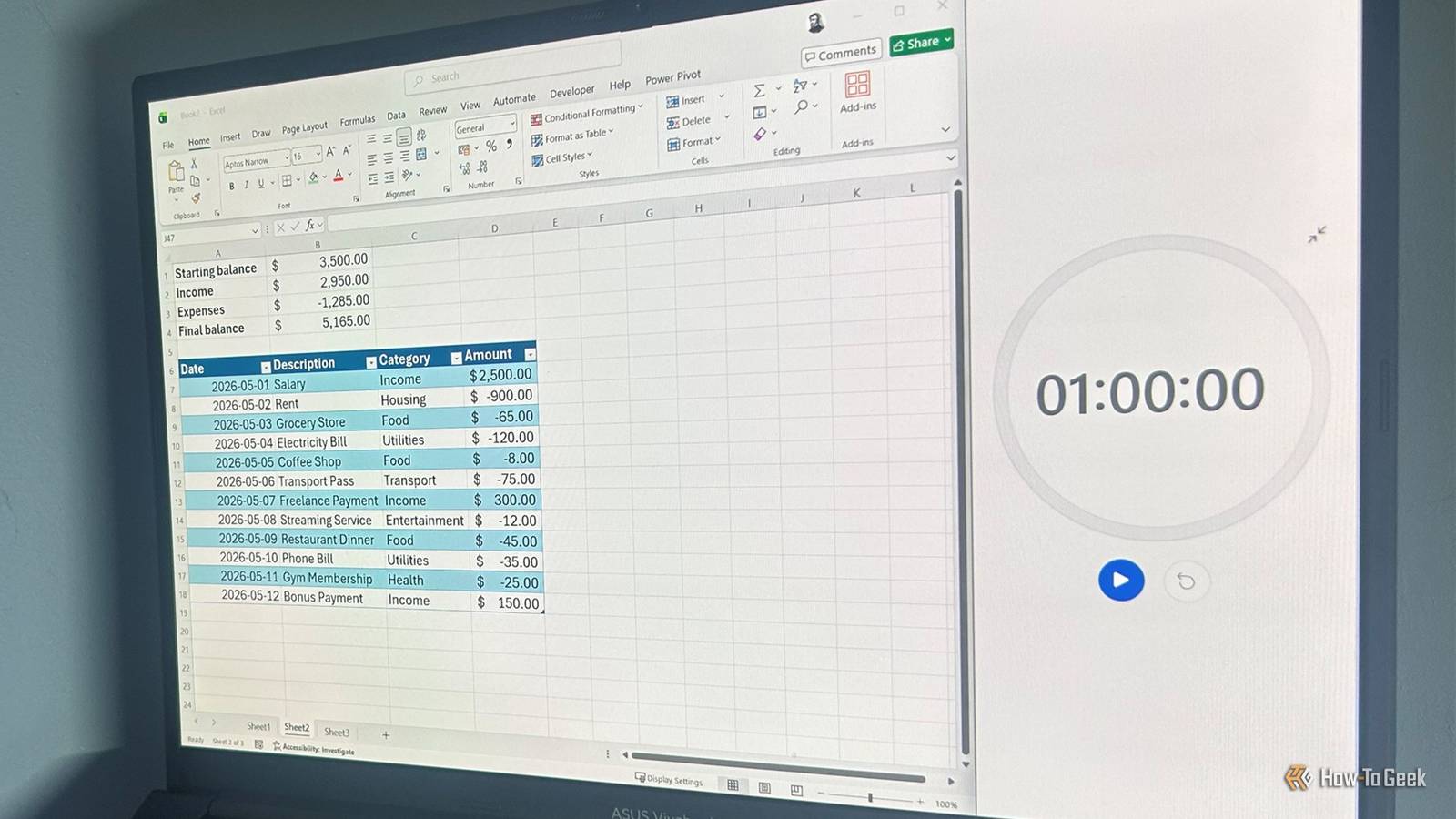
4. Expense Log with Automatic Totals
Record daily expenses and see running totals. This project reinforces cell references, SUMIF, and chart creation.
Steps
- Columns: Date, Description, Category, Amount.
- Use SUMIF to total expenses by category (e.g.,
=SUMIF(C:C,"Food",D:D)). - Create a Pie Chart from the category totals for a visual breakdown.
- Add a running balance using
=SUM($D$2:D2)and drag down.
Tip: Format the date column as Date and the amount column as Currency for clarity.
Getting the Most from These Projects
Each project takes under an hour, but you can expand them later as you learn more. The goal is to build a habit of opening Excel with a purpose. Start with the Budget Tracker or Schedule Planner if you want immediate practical use. For a more analytical challenge, try the Inventory List or Expense Log. Remember, you don't need to memorize every feature—just practice one project at a time.
These projects also introduce you to essential Excel skills like writing formulas, formatting ranges, and creating simple charts. By completing all four, you'll have a solid foundation for more advanced tasks like pivot tables or macros. So open Excel, pick a project, and start building your confidence one cell at a time.
Related Articles
- Global Gender Gap in Math Widens: Post-Pandemic Data Shows Alarming Trends for Girls
- 7 Critical Insights into Reward Hacking in Reinforcement Learning
- Building Your Personal Knowledge Base: A Guide for Gen Z and Everyone Else
- Kazakhstan Strengthens Digital Education Partnership with Coursera to Equip Students for the Global Economy
- Cracking the Code: A Step-by-Step Guide to Red-Teaming an Education AI System
- Building a Groq-Powered Research Assistant: A Step-by-Step Q&A
- 7 Crucial Shifts Your Enterprise Must Make for True AI Adaptability
- The Data Analyst to Data Engineer Journey: A 12-Month Self-Study Blueprint