Mastering Ptyxis: A Guide to Tabs and Color Schemes in the New Default Ubuntu Terminal
Overview
Ptyxis is a modern terminal emulator built with GTK4 and libadwaita, designed to integrate seamlessly with the GNOME desktop. It was created to meet the needs of contemporary software development workflows, with standout container support for tools like Podman, Distrobox, and Toolbox. Ptyxis is rapidly gaining popularity and has become the default terminal on Fedora and upcoming Ubuntu releases. This guide focuses on two of its most useful features: the tab and overview system, and the extensive color scheme options. By the end, you'll be able to navigate multiple sessions efficiently and personalize your terminal's appearance.
Prerequisites
Before diving in, ensure you have the following:
- A Linux distribution with Ptyxis installed. On Fedora, it comes pre-installed. On Ubuntu, install via
sudo apt install ptyxisor check your package manager. - A GNOME desktop environment (recommended, though Ptyxis works on others).
- Familiarity with basic terminal usage.
Step-by-Step Instructions
1. Understanding the Tabs and Overview System
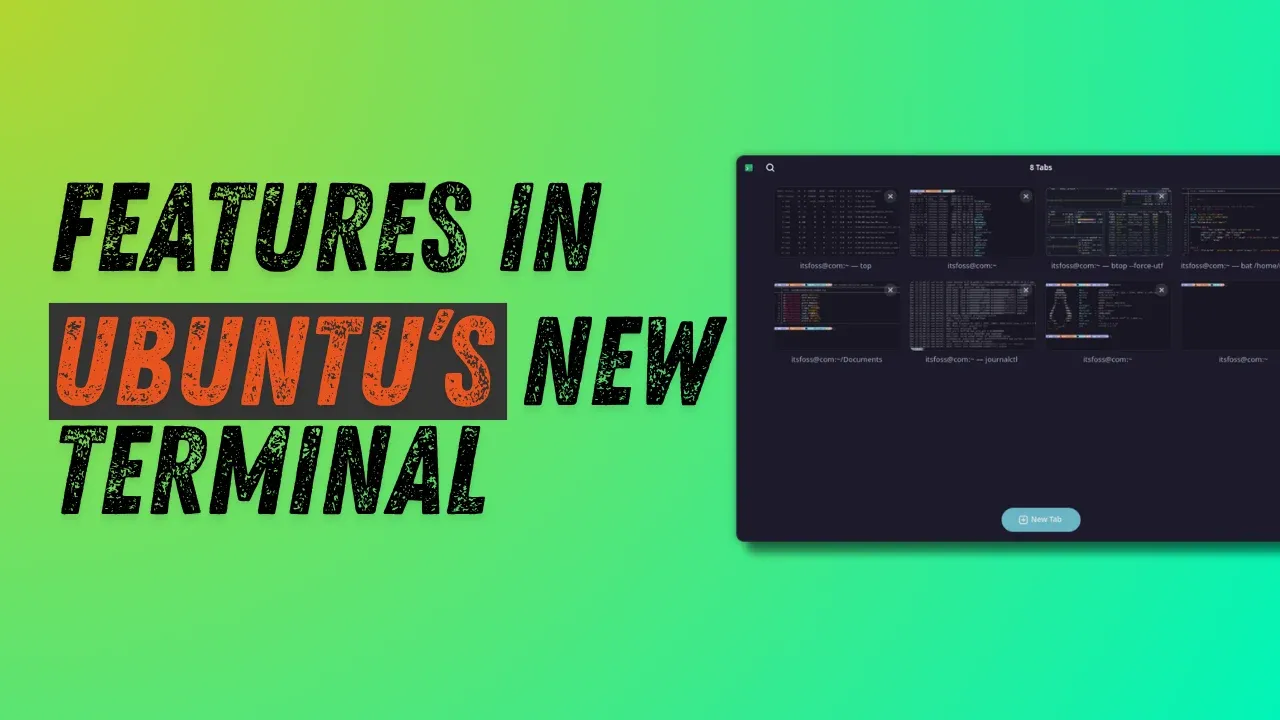
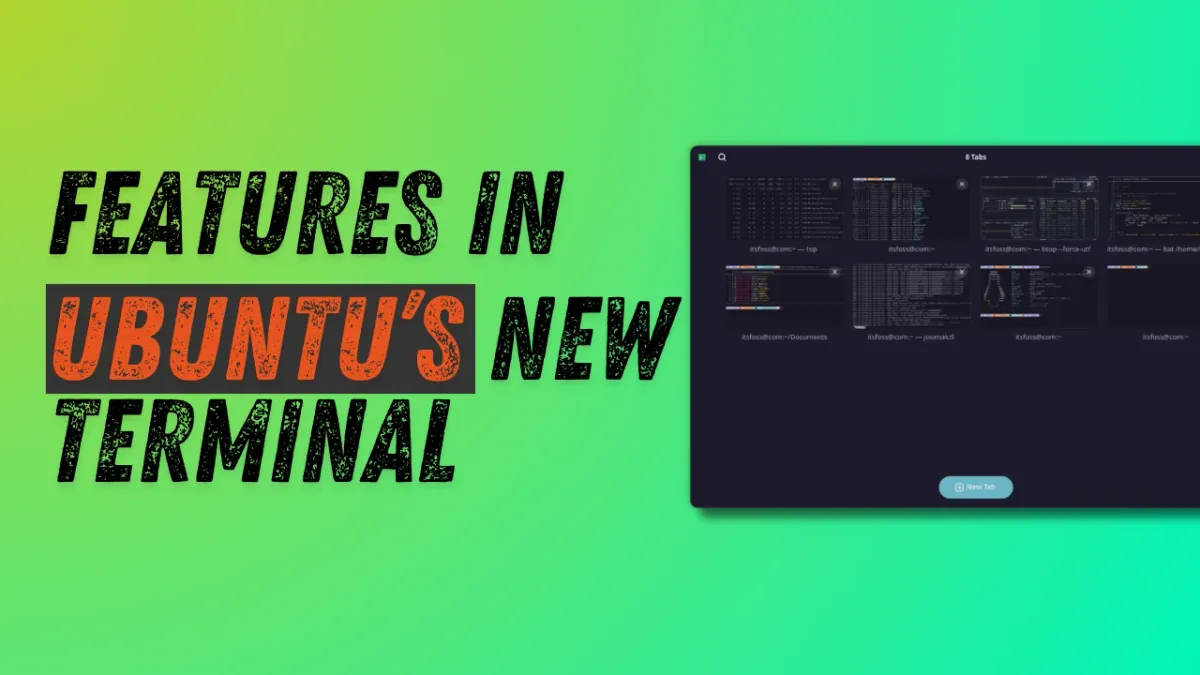
The first thing you'll notice when opening Ptyxis is its unique tab management. Instead of a standard tab bar, Ptyxis offers a visual overview reminiscent of the GNOME Activities screen.
1.1 Accessing the Tab Overview
To open the overview, click the Show open tabs button in the top-right corner of the title bar. This displays all open tabs with titles and small previews of their content. You can drag and drop tabs to rearrange them.
1.2 Renaming Tabs
Right-click any tab in the overview and select Set title. You have two options:
- Prepend a name to the default process (e.g., the current directory).
- Create a completely custom title replacing the default.
This is invaluable when managing multiple sessions—you can label tabs by project or task.
1.3 Pinning Important Tabs
In the overview, you can pin tabs to keep them always visible at the top of the list. Click the pin icon next to a tab to lock it in place. Pinned tabs remain accessible even when you have many open.
1.4 Searching Through Tabs
Once tabs are named, use the search button in the top-left of the title bar. Type part of a tab's name to instantly filter and jump to it. This feature shines when you have dozens of sessions open—no more hunting through a long tab bar.
2. Customizing Color Schemes
Ptyxis includes a wide range of preset color schemes that change the terminal's background, foreground, and accent colors.
2.1 Accessing Color Preferences
Click the three-dot menu (⋮) in the top-right of the title bar and select Preferences. Navigate to the Appearance tab.
2.2 Viewing and Applying Palettes
Click Show all palettes to see the full list of available color schemes. Each palette is shown with a preview. Click any scheme to apply it immediately—the change is instant and doesn't require a restart. The interface updates in real time, so you can experiment freely.
2.3 Notes on Customization
While this guide covers presets, note that the screenshots in many articles (including this one) use a customized prompt. The default Ptyxis appearance is different. You can further personalize by editing configuration files (found in ~/.config/ptyxis/) or by using the provided config files from our repository (not linked here). Refer to a terminal customization tutorial for advanced tweaking.
Common Mistakes
- Not seeing changes immediately: Color scheme changes take effect instantly. If you don't see a change, ensure you clicked a palette and didn't just close the window.
- Confusing overview with regular tabs: The overview is not the default view. Use the Show open tabs button to toggle it. If you prefer a classic tab bar, note that Ptyxis does not offer that option (by design).
- Forgetting to name tabs before searching: The search feature works only on tab titles. Unnamed tabs show their default process name, which may be less searchable.
- Assuming color schemes affect the prompt: The color scheme changes the terminal window's palette, but your prompt's appearance is controlled by your shell configuration (e.g.,
PS1in Bash). Customize that separately for a consistent look.
Summary
Ptyxis brings modern tab management and rich color customization to the Linux terminal. Its visual overview simplifies handling multiple sessions, while the instant palette application lets you tailor the look to your taste. Combined with strong container support and GNOME integration, it's a powerful tool for developers and power users alike. Start by exploring the tab overview and try a few color schemes to make Ptyxis your own.
Related Articles
- How to Successfully Integrate AI into Your Security Operations Center
- A Developer’s Guide to Setting Up Swift in Modern IDEs
- Pixel 10's May 2026 Update Locks Bootloader, Downgrade Path Blocked Amid Brick Risk
- Expanding the Attack Surface: Securing AI Agents with Tools and Memory
- Wendy's Shuts Hundreds of Locations: States with the Most Closures Revealed
- A Practical How-To Guide: Using Simulation to Overcome Measurement Limitations in Power System Design
- 10 Key Insights into NVIDIA and SAP's AI Agent Security Framework
- Obsidian Users Warned: Your Brain's Thinking Style Determines Success or Failure